I stopped using this Lightroom’s “Soften Skin” brush preset for retouching quite some time ago. I’ve seen many otherwise photos in my social network newsfeeds ruined by the use of this filter, so I felt compelled to write something about it.
Why I don’t like it.
There are two major side effects of this filter that really bug me. Contour Flattening, and Colour Artifacts/Distortion.
Colour.
Lets start with Colour.
For example, take this worst case scenario: my ugly mugshot, no makeup patchy skin. You can click through for the 100% images (yikes)
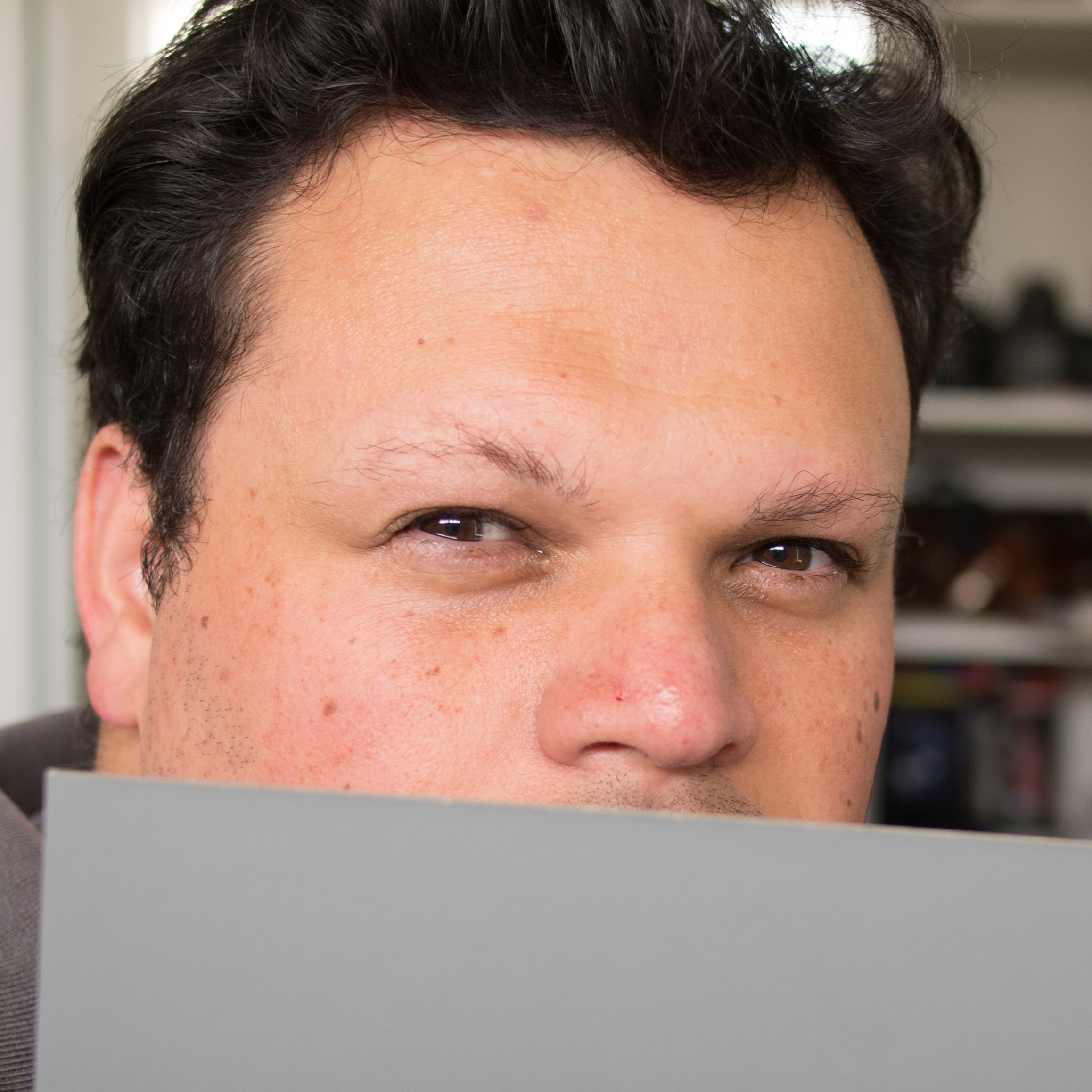

Pores and spots are greatly reduced, but what is going on with the colour? The red areas are now these weird patches, the freckles have turned orange, and theres weird yellow/brown patches above my eyes. My forehead has also turned orange.
Basically while this tool softens the contrast in pores, blemishes and wrinkles, it also smears the colour around, and actually draws more attention to it. Maybe I’m just very picky when it comes to colour.
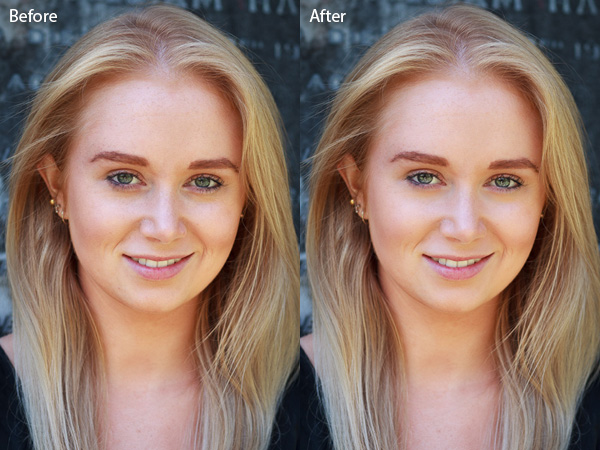
I find this is noticeable even at mild levels of usage. Take an example from one of the typical “how to retouch with lightroom” tutorials on the web. Notice the yellow blobs under the eyes?
Flattening
Since the Soften Skin filter works on removing local contrast (a.k.a Negative Clarity), it darkens highlights, and lightens shadows. Here is a recent image from my cosplay photography work. I’ve done exposure and white balance adjustments, and applied the Fuji Pro 400H preset from Totally Rad’s Replichrome package.

Now lets remove some blemishes with the healing tool and apply the “Soften Skin” brush:
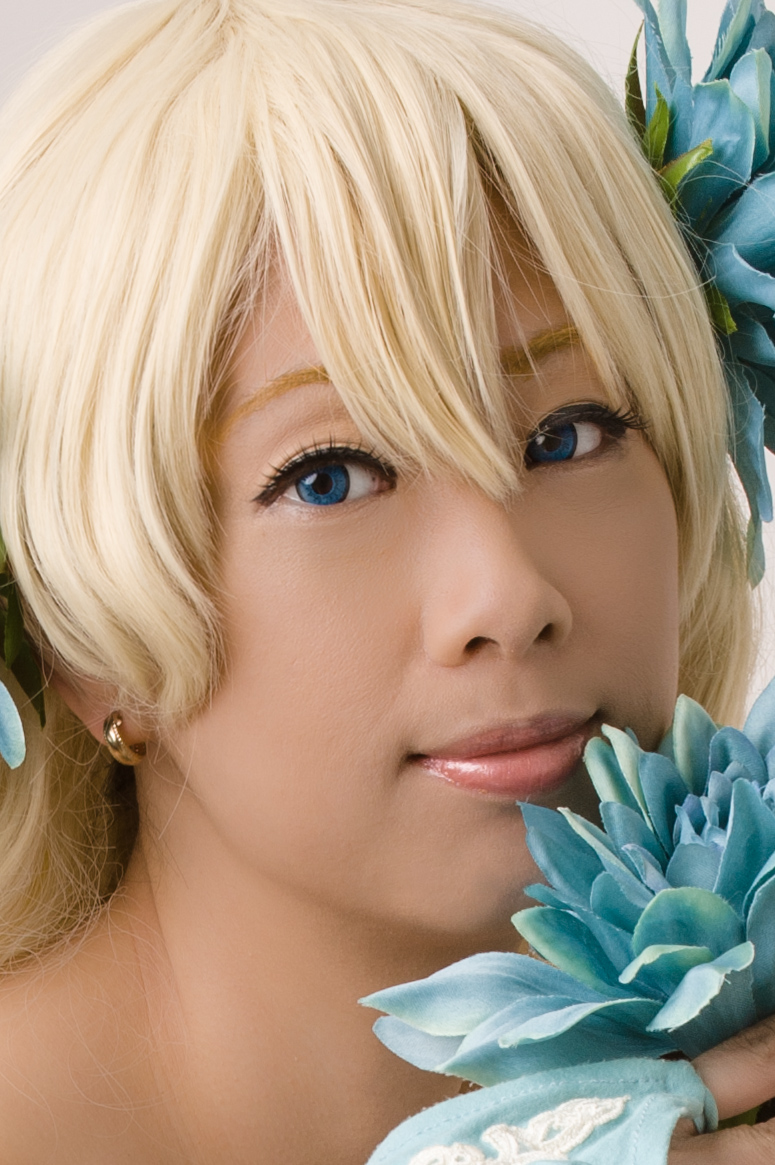
Everything is nice and smooth an soft with no visible colour artefacts (good light, and good makeup). But the contours and shape of the face have been completely lost. Its also somewhat darkened everything. Lets compare the original side by side:
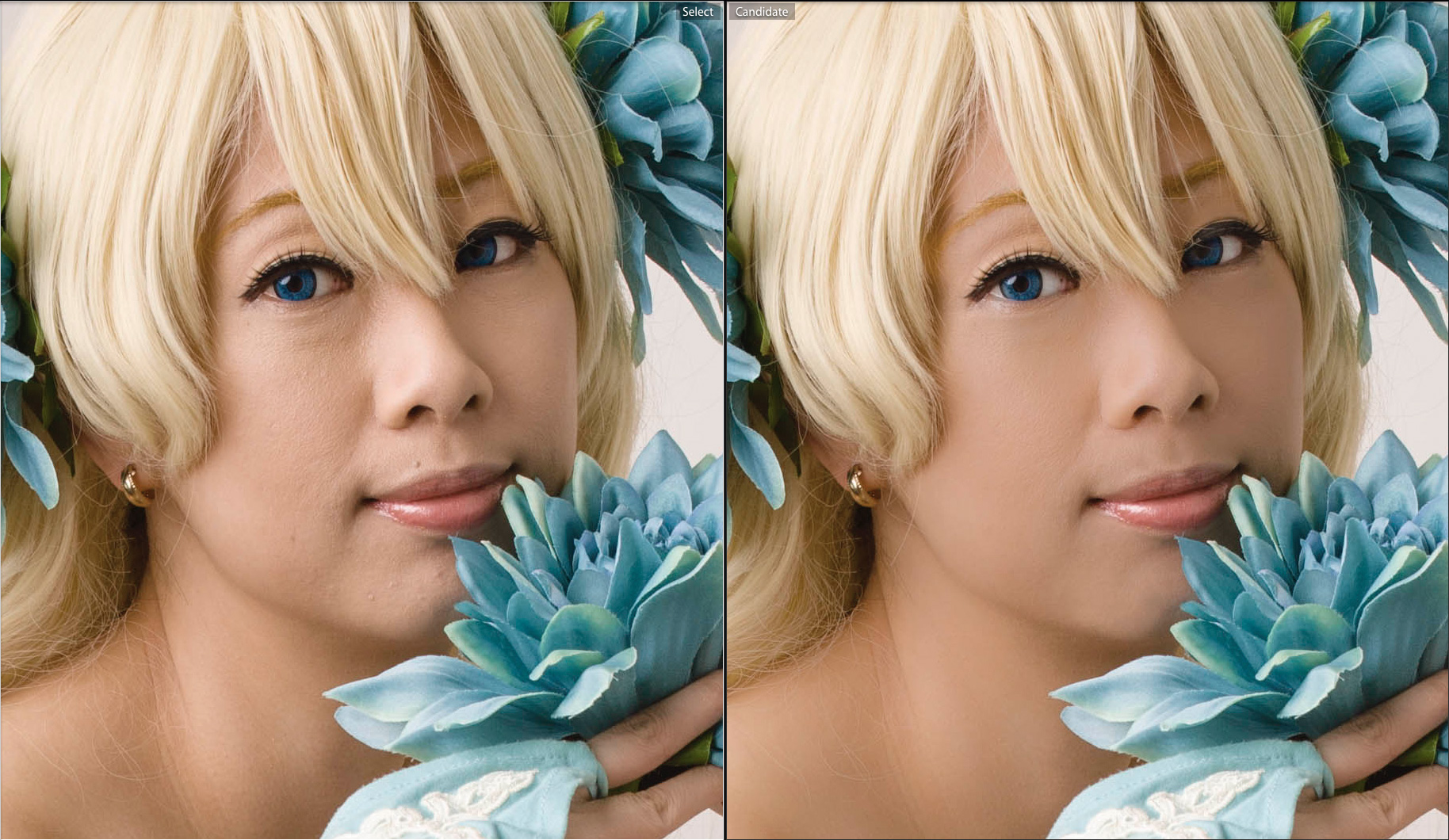
I normally use frequency separation and dodge and burn as my primary retouching techniques. So lets compare a near complete photoshop retouch vs the Lightroom version.
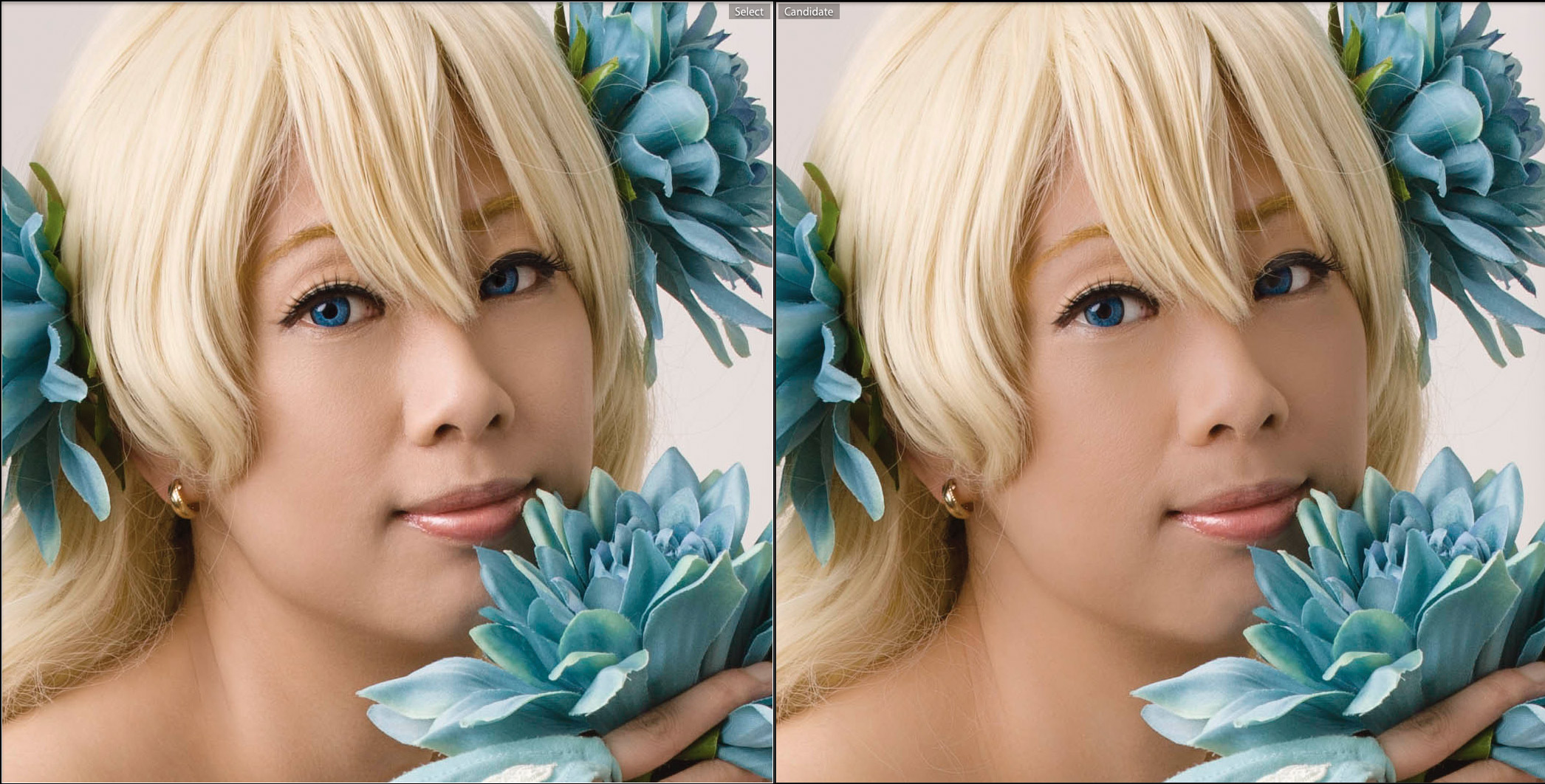
Some more dodge and burn is needed, and the lack of a catchlight in the left eye is bothering me. However you can see that frequency separation produces far better results.
Color Efex Pro
“But Elo, I don’t do Photoshop, and that looks like it takes a long time to do!”. Well, with practice you can get very quick at using frequency separation in photoshop. With an action, you don’t have to mess with layers, I use FXRays’s excellent set of actions, check out the tutorial while you’re there. With a pressure sensitive tablet, and keyboard shortcuts you can get even faster.
So what’s the alternative? Color Efex Pro’s Dynamic Skin Softener. If your image is lit properly, and your model has good makeup this works amazingly well. Color Efex Pro is now free, so give it a try.
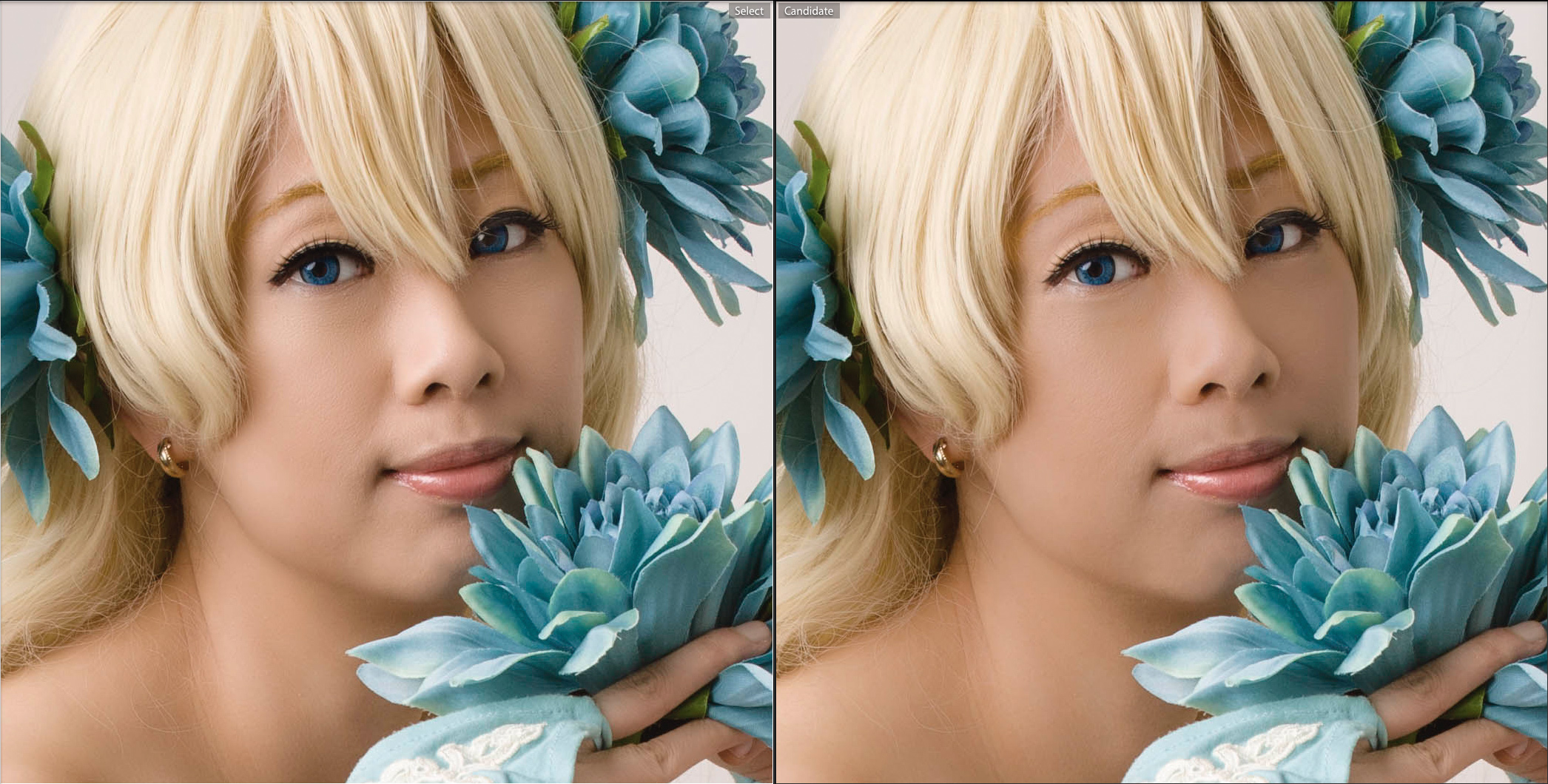
Conclusion
The “Soften Skin” brush in Lightroom, does work but needs to be handled very carefully to avoid flattening depth. As it does not adjust the skin colour, it ends up making things worse and this also needs extra work. At this point, you may as well be in photoshop so you can use the more powerful tools.